
The short answer
Test the phone and cable you will use in the actual car while parked. Record navigation, calls, reconnection and support in Israel separately, and put essential capabilities in the written quotation.
Who this guide is for
For buyers of new or used cars in Israel who want infotainment that suits their phones and driving routine.
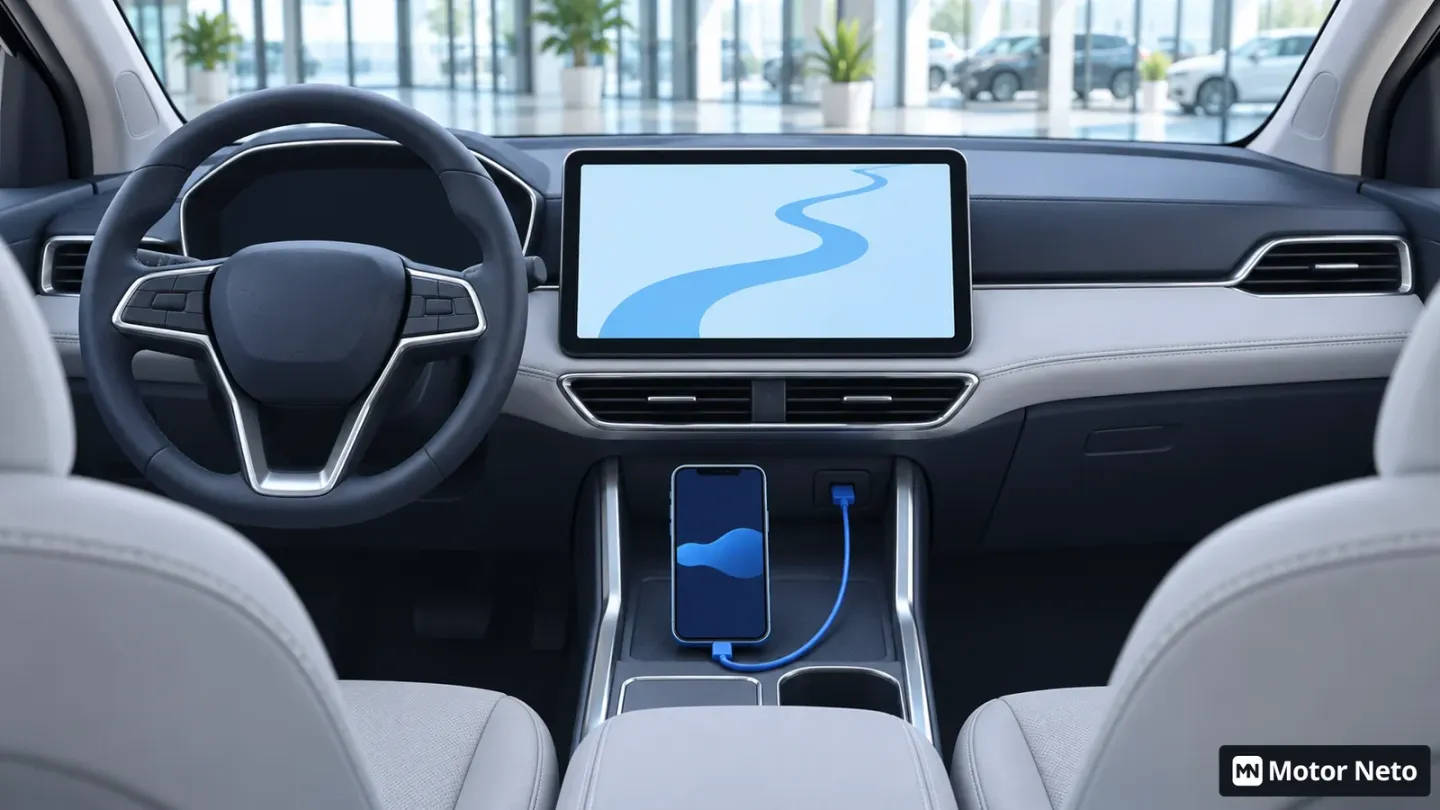
Before buying a car, connect your own phone and try the tasks you actually use: navigation, a call, music and reconnecting after leaving the vehicle. A large screen, a USB socket or Bluetooth in the equipment list does not fully answer whether your preferred connection works in that particular car.
This check helps you choose a car; it is not a diagnosis of a faulty system. Carry it out in a safe parking place, with the car stationary and following its instructions, by agreement with the seller. Google instructs users to set up Android Auto while parked, before driving. You do not need to take to the road to establish whether the phone is recognised, the right app opens or both sides can hear a call.
Start with the system name, not screen size
Ask the seller to identify the infotainment unit and the connection being promised: Apple CarPlay, Android Auto, Bluetooth audio and calls, or apps installed in the car itself. These are different arrangements. A working Bluetooth call does not prove that your phone can display navigation through CarPlay or Android Auto. Equally, a map on the dashboard does not establish that it comes from the phone.
Google distinguishes Android Auto, which connects the phone experience to the car's display, from Android Automotive OS, which runs in the car itself. A vehicle can support both, but the operating-system name alone does not confirm this. Ask the seller to show where the app runs and what requires a separate account or data connection. Do not assume that every built-in service automatically uses your mobile data plan.
Record the model, trim and year of the car offered, plus details of any replacement system. In a used car, an apparently original screen does not establish who installed it or what is included. Ask the seller for suitable documentation. If a capability is essential to the purchase, include it in the written quotation, specifying any required cable or accessory and who supplies it.
Check regional support and your particular phone
Apple asks users to check both vehicle and country or region compatibility; its availability list includes Israel. The country list on the Android Auto getting-started page checked on 18 November 2026 does not include Israel. Google also says most features will not work outside the listed countries. An international list of compatible vehicles therefore does not promise full support in Israel, even if a seller demonstrates a working connection.
Request a written answer from the importer about the system, phone and services offered in Israel. Separate an observed result from a commitment to support it. There should be no need to change your account region or install files from an unfamiliar source to prove compatibility during a purchase. If the answer remains unclear, mark the feature as unconfirmed for your use. Missing information is neither a positive promise nor proof that a connection can never work.
Bring your normal handset, the software version you use and a suitable working data cable. If your household uses both iPhone and Android, test both. Success with the salesperson's phone does not test yours. Updates and requirements change, so consult current phone and vehicle manufacturer instructions instead of relying on a version number mentioned verbally.
Separate wired connection, wireless connection and charging
Apple describes different CarPlay setup routes for cable and wireless use, depending on what the car supports. Google also requires a compatible car for wireless use, alongside a suitable phone. Do not assume wired support guarantees wireless operation, or that a wireless charging pad proves wireless connectivity to the display. Charging and projecting apps are separate capabilities to demonstrate separately.
Use the vehicle manual to identify the correct data socket. A cable charging the phone does not by itself establish that data transfer works. Connect the handset, read permission requests and authorise only what the check requires. If an adaptor is proposed as part of the solution, try the actual chain of equipment you will receive, rather than a different connection that happened to work in the showroom.
| Check | What it establishes | What it does not guarantee |
|---|---|---|
| Charging the phone | Power is supplied through the tested connection | CarPlay or Android Auto support |
| Opening phone navigation on the display | That particular app appears through this connection | Support for every app or phone |
| Reconnecting after leaving | Connection behaviour under the conditions tested | Long-term reliability or behaviour after every update |
Charging the phone
- What it establishes
- Power is supplied through the tested connection
- What it does not guarantee
- CarPlay or Android Auto support
Opening phone navigation on the display
- What it establishes
- That particular app appears through this connection
- What it does not guarantee
- Support for every app or phone
Reconnecting after leaving
- What it establishes
- Connection behaviour under the conditions tested
- What it does not guarantee
- Long-term reliability or behaviour after every update
Let your routine shape the demonstration
Open a navigation app you use, search for a familiar public destination and check the display and guidance language. You do not need to enter your private home address. Check that the controls you need are accessible and that you can return to the car menu without losing track of where you are in the interface. An app installed on a phone is not necessarily available in the car interface; test the app itself.
Make a trial call to someone who agrees, without recording it. Ask whether your voice is clear, then check audio volume and switching between music and the call. If contacts permission is requested, establish what the car will retain before agreeing. You can start with a limited check rather than copying an entire address book merely to see whether a microphone works.
Now disconnect and reconnect according to the instructions, and try switching to the other driver's phone. Notice which device connects first, how you select another and whether a cable is needed for each change. These are observations from this appointment, not a reliability measurement. If an important action fails, record what happened and the connection used, instead of merely describing the system as bad.
Finish with a decision and a record, not an update promise
Group the results into three categories: an action demonstrated successfully, one not tested, and one that failed and needs an answer. This makes cars easier to compare without giving an impressive screen more weight than everyday use. The check fits into building a shortlist of cars, alongside budget, space and comfort. It does not replace examination of the vehicle itself.
If an update is promised to resolve a problem, ask for the capability, timing, cost and responsible party in writing. Do not count a future feature as already delivered. For requirements and initial setup, consult Google's Android Auto guidance, and check compatibility against the instructions for the particular car and phone.
Checklist before you continue
Before leaving, ask the seller to remove your device and the information imported from it. On your phone, remove the car following the system instructions. Do not reset somebody else's car without their agreement. Keep only the results and commitments needed for your decision: a demonstration should reduce uncertainty, not leave your personal account in a car you have not bought.
Found an error or outdated information? Read how we handle corrections and sources, or email us: [email protected].